This page explains how to set up an account on the TBP District 7 community calendar and how to add your chapter’s events. The editing area of the site is called the Backstage.
Getting an account
Accounts are by invitation. If you organize events for a chapter in District 7, ask us or a chapter member who already has an account for an invitation. The invitation link can only be used once.
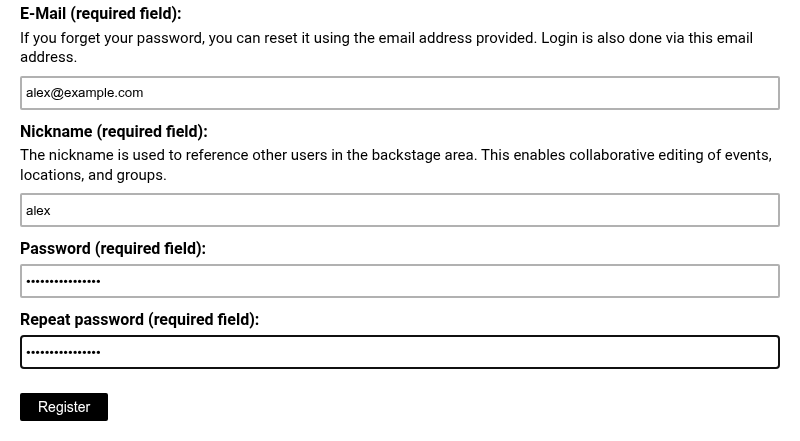
Open the link and enter your email address, a nickname and a password of at least 8 characters, then click Register. Other members will see your nickname when they add you to a group or an event. It is a good idea to add your chapter affiliation (e.g., Sergei (MI-K)) to your nickname.
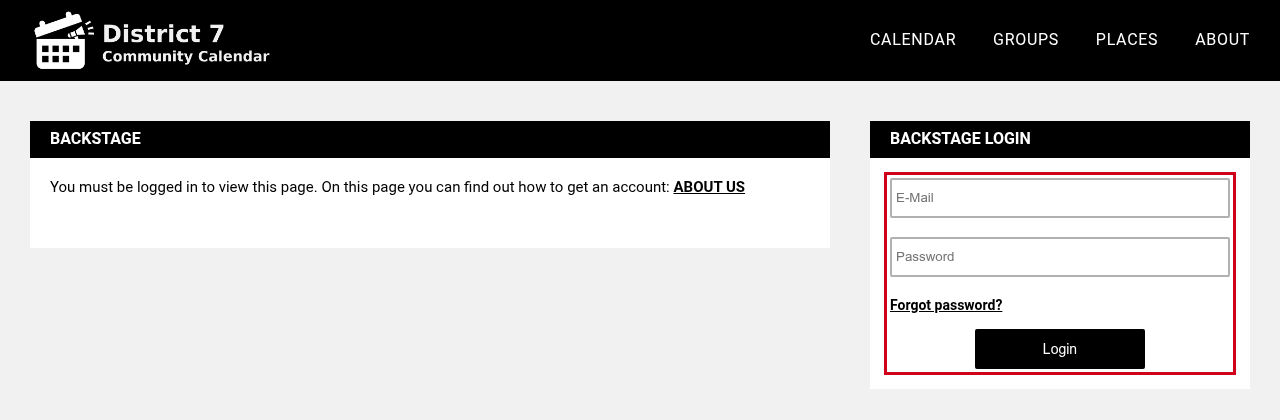
After that you can log in at any time at https://cal.tbp-d7.org/backstage.
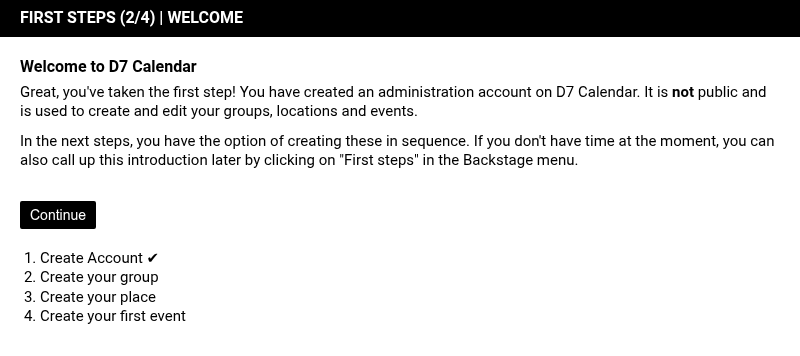
First steps
Right after registering, a short guide called First steps opens. It offers to create a group, then a place, then your first event, one page at a time. You can open it again later from First steps in the Backstage menu.
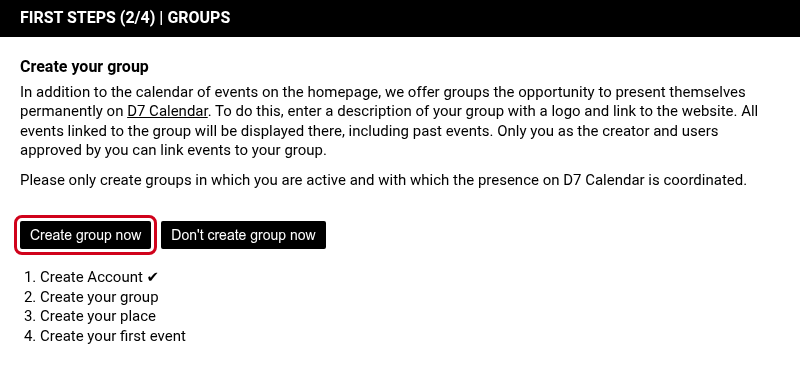
Click Create group now to set up your group for your chapter. The form is described under Creating your group below.
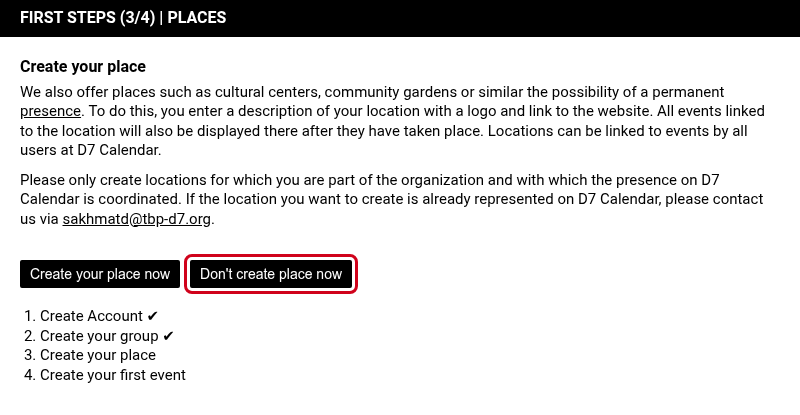
On the next page, click Don’t create place now. Places are for venues that want their own page and pin on the calendar, and we already have a place created for every chapter.
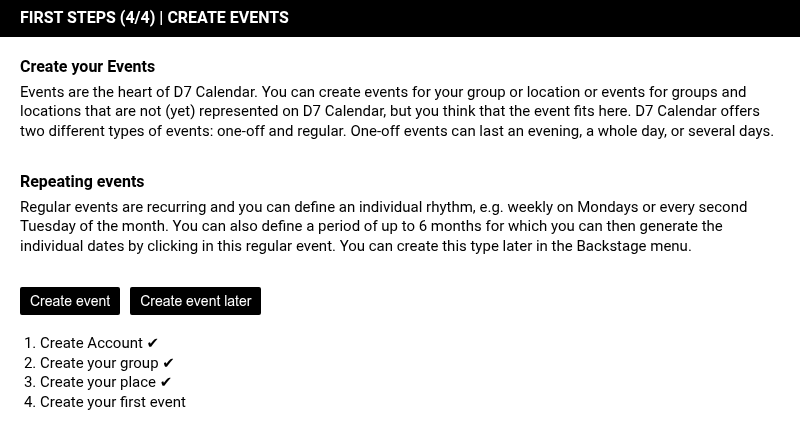
The last page explains events and repeating events. You can create your first event from there or later from the menu.
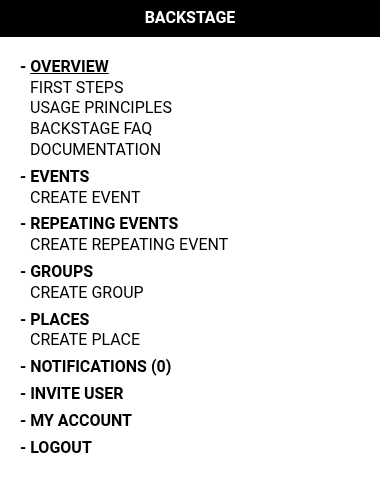
The Backstage menu
The menu on the right of every Backstage page has more entries than most people need. Events and Groups are where you will do almost everything. Repeating Events is for things that happen on a regular schedule. Places is for venues with their own page (we have a place for every chapter). Notifications shows messages from the site. Invite User lets you invite others once your account is a week old. My Account is where you change your email or password. Overview, Usage Principles, Backstage FAQ and Documentation explain the site in more detail.
Creating your group
A group is the organization that hosts events, such as a collegiate or alumni chapter. If your chapter already has a group on the calendar, ask whoever created it (likely one of your officers!) to add you to it instead of creating a second one.
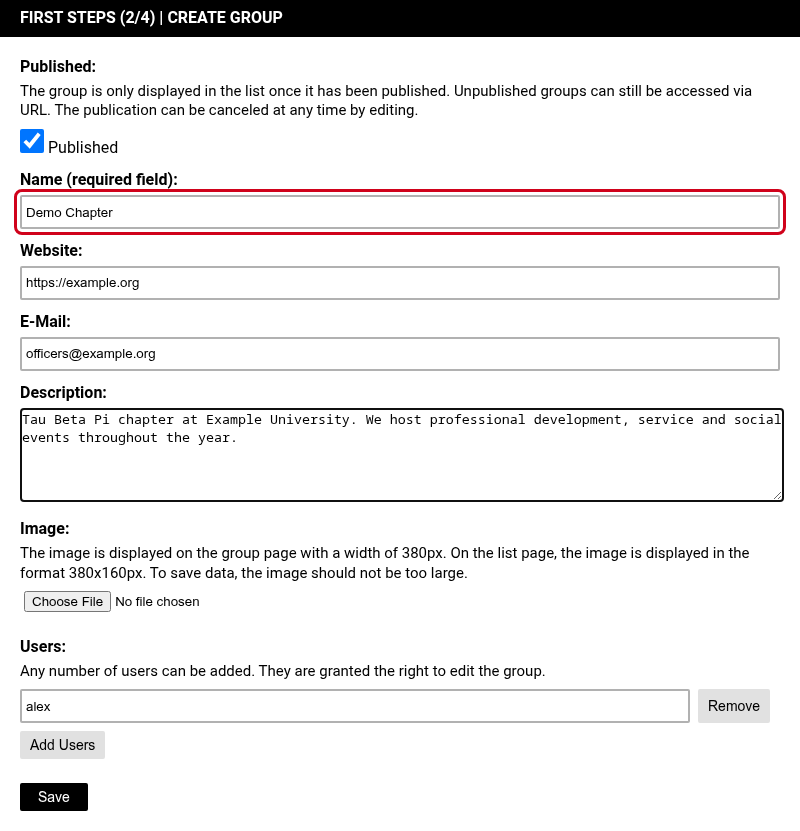
To create a group, choose Create Group under Groups or use the First steps guide. Only the name is required. A website, email, description and logo are optional and appear on the group’s public page, which lists all its events. Under Users you can add other members by nickname so they can edit the group and its events. Leave Published checked so the group is listed on the site.
Adding an event
Choose Create Event under Events. The form is long, but only a few fields matter for most events.
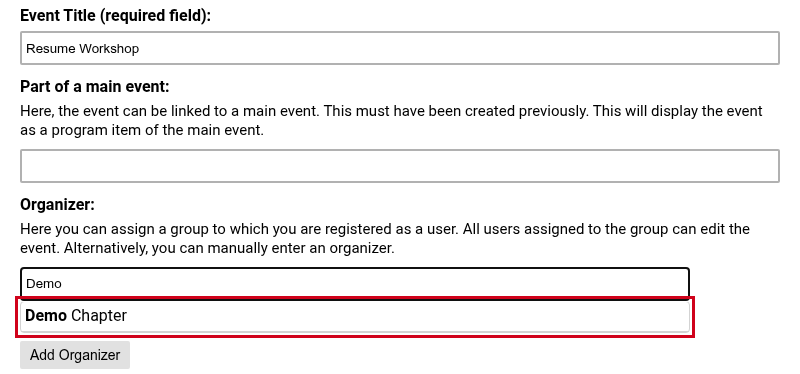
Fill in the Event Title. Under Organizer, start typing your group’s name and pick it from the list that appears.
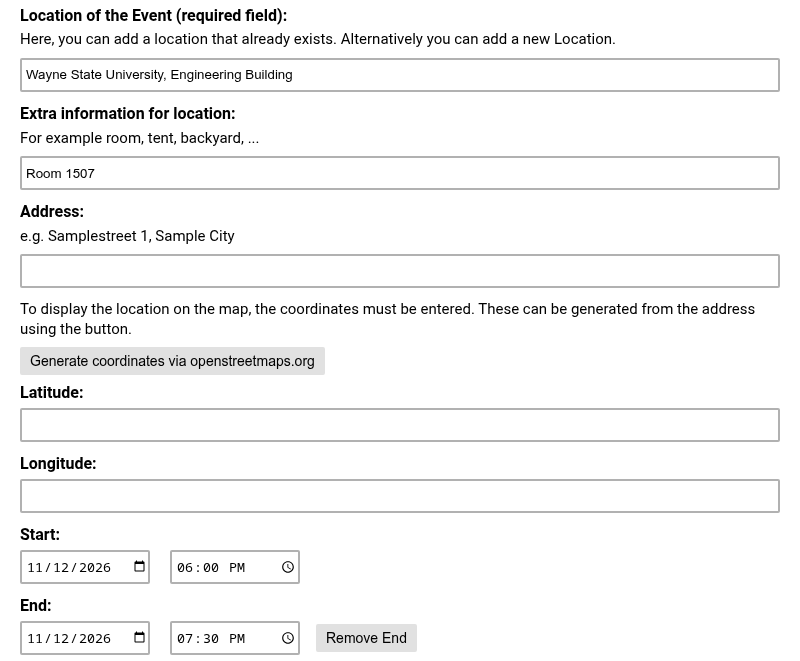
The location is required. Start typing your chapter (e.g., “OH-Z”) and pick your chapter. If the event has a specific address/building/room number, populate those fields as well. Then set the start date and time. To add an end time, click Add End.
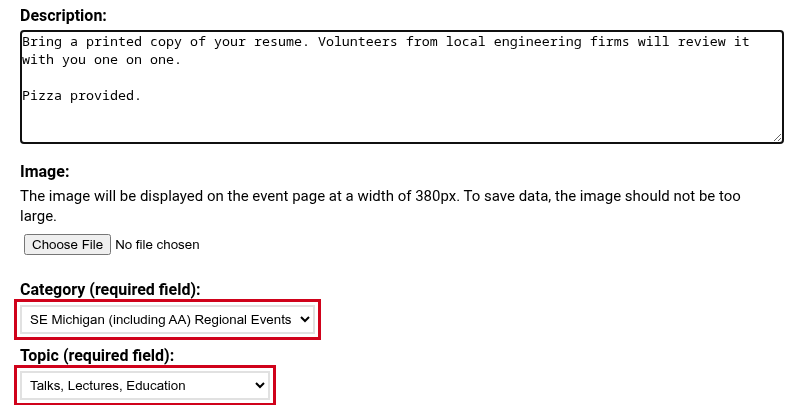
Add a description, then choose a Category and a Topic. Both are required. The category is the region the event belongs to, and the topic says what kind of event it is.
The other fields can be left empty, including Part of a main event, Involved People, Image, Tags and Users. Click Save at the bottom of the form. The event is published right away unless you uncheck Published at the top.
Editing or canceling an event
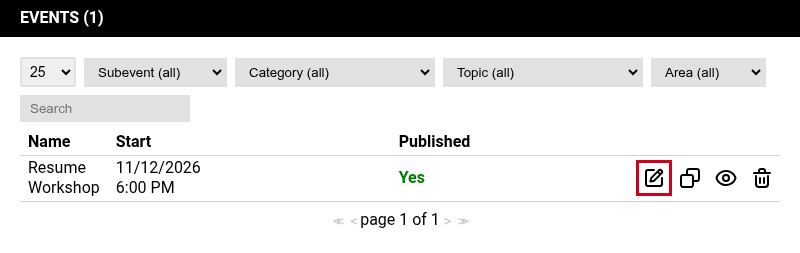
Open Events in the menu to see the events you can edit, and click the pencil icon next to an event to change it. The icon next to the pencil makes a copy, which is useful for a similar event on another date. The trash can deletes the event.
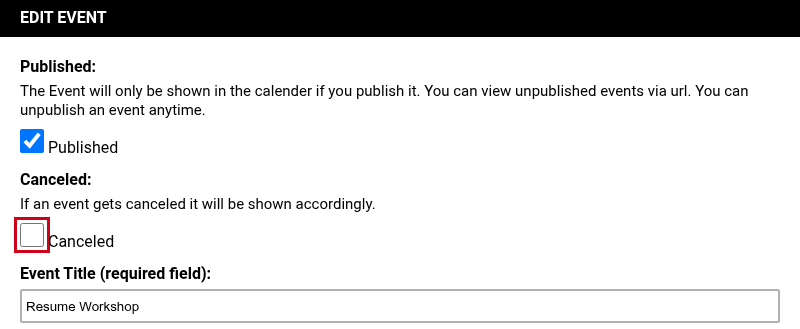
The edit form has a Canceled checkbox under Published. A canceled event stays on the calendar and is marked as canceled.
Repeating events
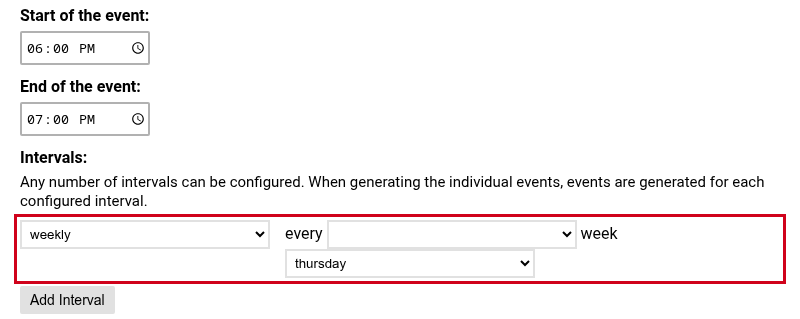
For something that happens on a fixed schedule, such as a weekly meeting, choose Create Repeating Event under Repeating Events. Fill in the form like a normal event, but give only the start and end times, then set the interval, for example weekly on Thursday. Click Add Interval if the event follows more than one schedule.
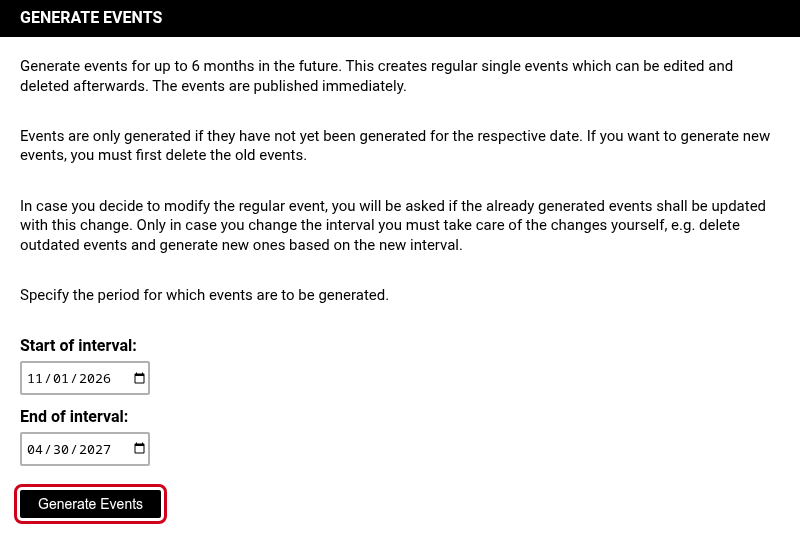
After you save, the page asks for the period to create events for, up to six months ahead. Pick the start and end dates and click Generate Events. Each date becomes a normal event that you can edit or cancel on its own. When the period runs out, open the repeating event under Repeating Events and generate the next period there.
On the calendar
Published events appear on the calendar at https://cal.tbp-d7.org right away, sorted by date. Repeating events show their schedule under the title, and visitors can filter by category and topic.
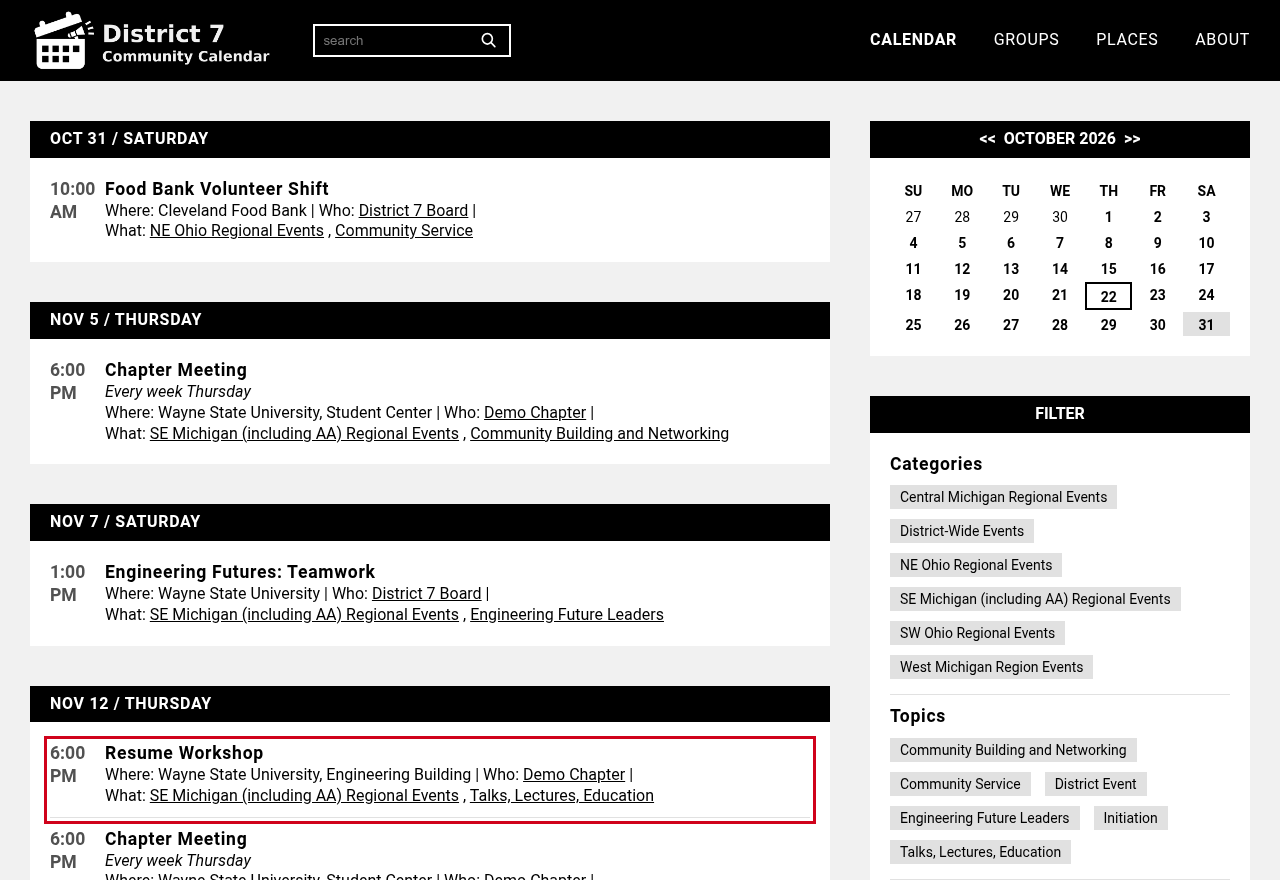
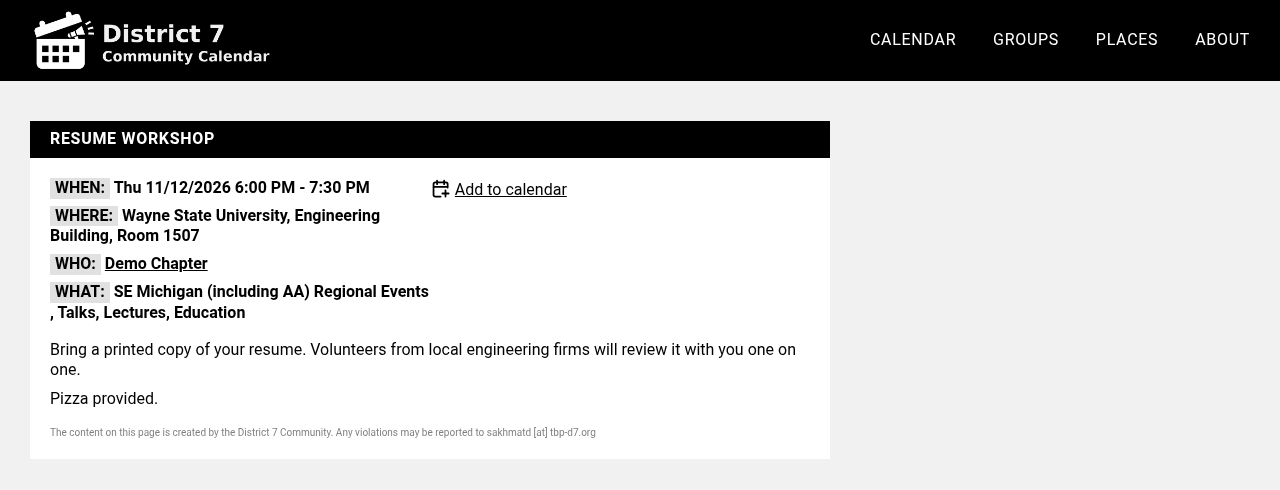
Each event has its own page, which you can link to from your chapter’s website or social media.
Existing calendars
If your chapter already keeps its events in Google Calendar or another calendar app, the calendar can be added to this site and kept in sync automatically. Note that the sync is one way: since we do not (and should not) have write access to your calendars, updates to those calendars will synchronize with the Community Calendar, but not vice versa.
You can also use #tags in the description of your events; those will be automatically picked up and set as tags in the Community Calendar. List all #tags on one separate line.
To set this up, send us the embed code from your website, the calendar ID or the public iCal address. In Google Calendar the iCal address is under Settings, the calendar’s name, Integrate calendar. The calendar needs to be public.
Questions
Write to or our group team email address if anything does not work or is unclear.